First you need to know which network your line has coverage on: Vodafone,
Movistar or Orange. If you're not sure, call 842 842 842
and we'll confirm it. The username and password should always be left
blank, regardless of your network or phone.
Network
APN
Vodafone
fi.omv.es
Movistar
inet.es
Orange
internet
Step-by-step guide
Find the exact steps for your phone
Tap your phone in the list and we'll show you the screens from your own handset, with screenshots.
1
Which phone do you have?
Android
2
Which model do you have?
This is just so we show you the right screen. If yours isn't there, pick the last option — the steps are the same.
You're viewing the steps for
Can't find your phone on the list? Call us on 842 842 842 and we'll set it up with you.
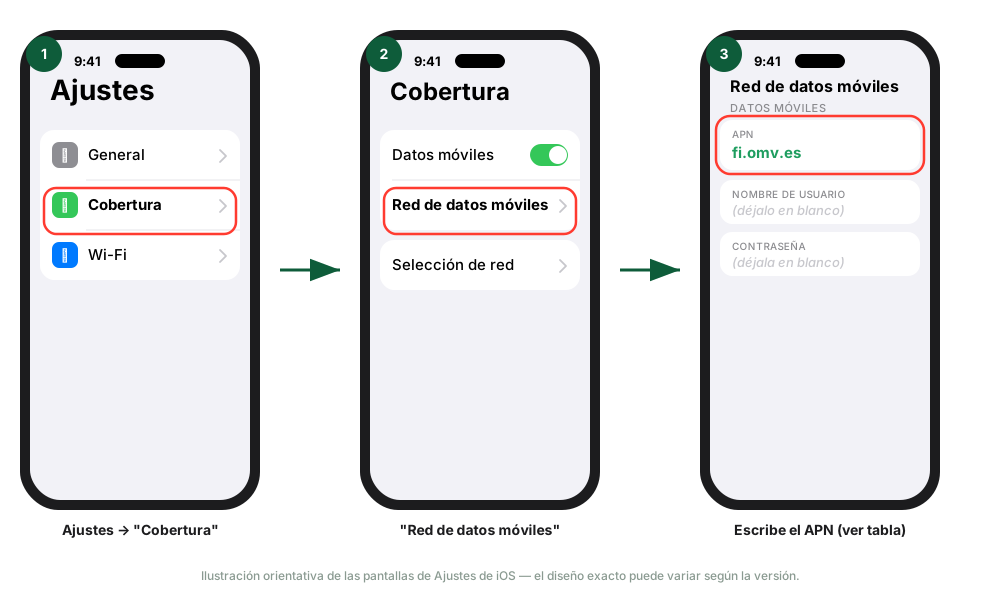
Open Settings → Cellular (if you have two lines or eSIM, tap the specific line first).
Tap Cellular Data Network (on some models: Settings → Cellular → Cellular Data Options → Cellular Data Network).
In the APN field, type the one for your network (table above).
Leave Username and Password blank.
Exit Settings — there's no "Save" button, it applies automatically. Toggle Airplane Mode on and off for a few seconds to reconnect.
If this screen doesn't appear on your iPhone, your previous carrier locked manual APN editing — call 842 842 842 and we'll check it.
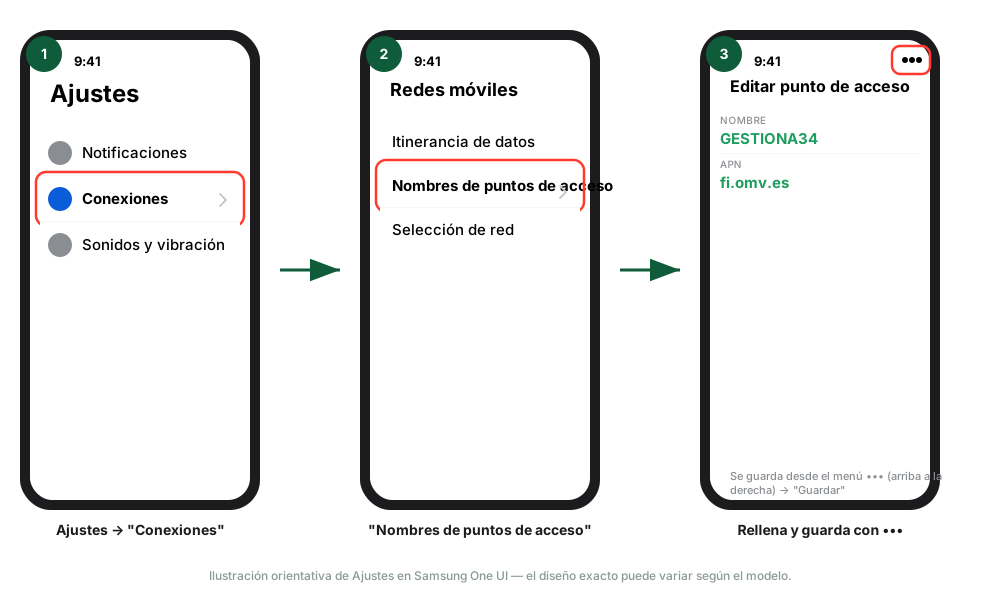
Open Settings → Connections → Mobile networks.
Tap Access Point Names.
Tap the + button top-right (if you don't see it, use the ••• menu → "Create APN").
Fill in Name (anything, e.g. "GESTIONA34") and APN (table above). Leave everything else blank.
Tap the ••• menu (top-right) → Save. There's no Save button on the screen itself.
In the list, tap the circle next to the new APN to select it as active.
Toggle Airplane Mode, or restart the phone.
Shortcut: type "APN" in the Settings search bar to jump straight there — the exact menu path varies slightly by model.
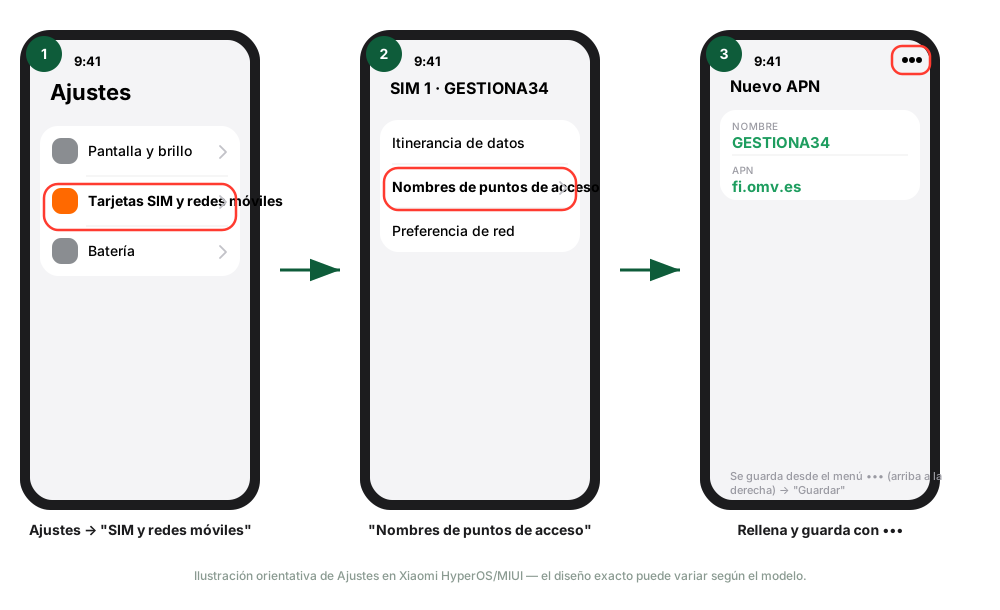
Open Settings → SIM cards & mobile networks.
Tap the relevant SIM (if you have two) and then Access Point Names.
Tap New APN or the + icon.
Fill in Name and APN (table above). Leave everything else blank.
Tap the ••• menu (top-right) → Save.
Tap the circle next to the new APN to activate it.
Restart the phone for it to apply.
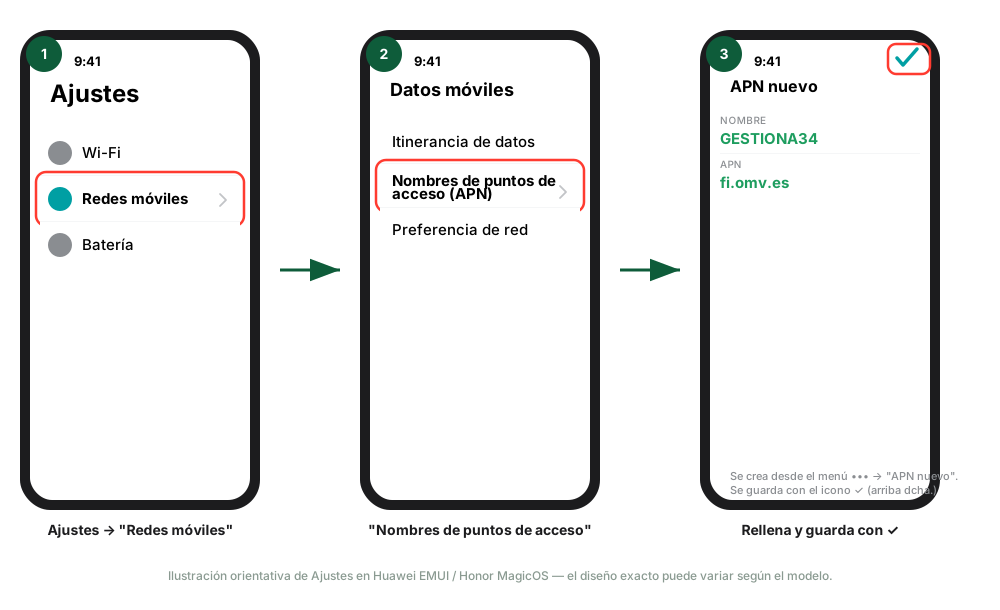
Open Settings → Mobile networks (on some Honor phones it may show up directly as "Mobile data").
Tap Mobile data → Access Point Names (APN) (on Honor sometimes singular: "Access Point Name").
Tap the ••• menu (top-right) → New APN.
Fill in Name and APN (table above). Leave everything else blank.
Save with the ✓ icon (top-right) — this screen has no text "Save" button.
In the list, tap the circle next to the new APN to mark it as active.
Restart the phone, or toggle Airplane Mode.
Shortcut: type "APN" in the Settings search bar — the exact path varies slightly by model and EMUI/MagicOS version.
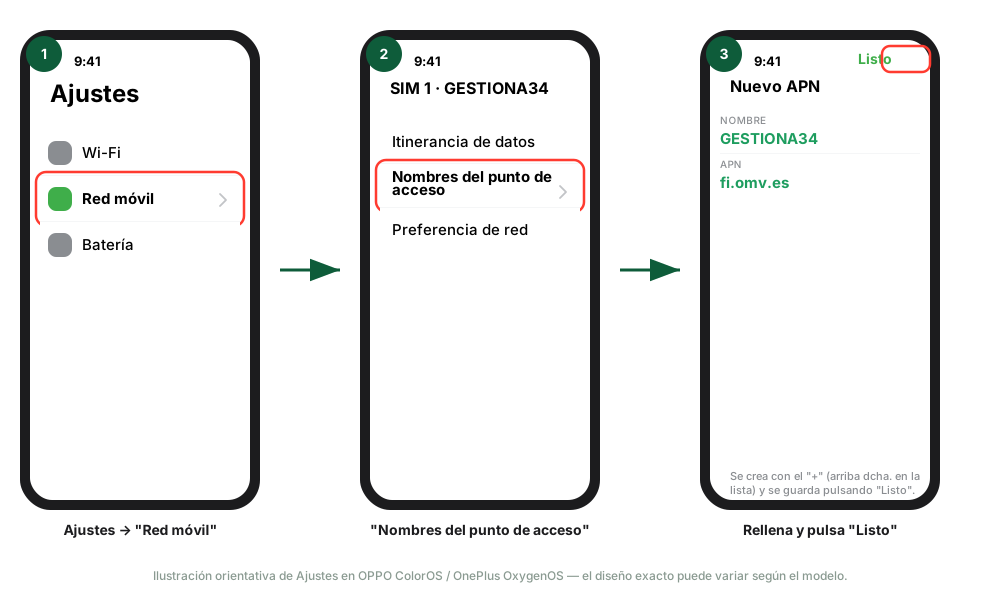
Open Settings → Mobile network (on older models: "Network & Internet → Mobile network").
Tap your SIM, then Access Point Names.
Tap the + icon (top-right) to create a new one.
Fill in Name and APN (table above). Leave everything else blank.
Tap Done (top-right) to save.
Tap the circle next to the new APN in the list to activate it.
Restart the phone, or toggle Airplane Mode.
On slightly older OnePlus and Realme phones, saving may be inside the ••• menu instead of a direct "Done" button — check there if you don't see it.
These steps work on almost any Android —Motorola, Google Pixel, Vivo, Nokia, Android One and the rest— because their menus are essentially unmodified Android:
Open Settings → Network & Internet (or just "Internet" on recent Android versions).
Tap your SIM/carrier, then Access Point Names.
Tap the + icon to create a new one (if it's missing, use the ••• menu → "New APN").
Fill in Name and APN (table above). Leave everything else blank.
Save with the ✓ icon or the ••• menu → "Save".
Tap the circle next to the new APN to activate it, and restart the phone.
If your exact model doesn't match these steps, type "APN" in the Settings search bar — on almost every phone it jumps straight to this screen.
🔧 None of these screens showing up, or still no data after setting it up? Call
842 842 842 and we'll help you right away.
Do you offer eSIM?
Yes. You can have an eSIM whether you are a new customer or you already have a physical
SIM and want to switch, as long as your phone supports it. To request one, or if you have
any questions about the process, call us on 842 842 842 or email
soporte@gestiona34.com and we will sort it out with you.
Roaming & travel
Can I use my line normally if I travel to an EU country?
Yes. Within the European Union and the European Economic Area (our Zone 1), you can use
your line just as you would in Spain — calls, texts and data — within the fair-use data limit of your
contracted rate. That limit can vary by rate plan, so if you need the exact figure for yours, check your
client area or call our sales team (842 842 842).
Are the UK and Andorra included in Zone 1?
No. Although they are geographically close, neither the UK nor Andorra are part of the
European Union or the European Economic Area, so they are not included in Zone 1. For
roaming purposes they are treated as rest-of-world: if you travel to either, the next answer applies,
not the EU one.
What happens if I travel outside the European Union (rest of world)?
Outside Zone 1, data and call roaming is not automatically included in your rate. If
you're travelling to a country outside the EU/EEA — including the UK and Andorra — contact our sales
team before your trip so we can inform you of the options and conditions available for
your specific destination.
Can I use my mobile line on board a ship or cruise?
No. Connectivity through ship networks (maritime/satellite roaming) is never included
in our rates. If you travel by ship or cruise, you'll need to use the Wi-Fi provided by the shipping
line or another onboard connectivity service. The costs of that service are set by the shipping line or
the relevant maritime operator, not by GESTIONA34.
💡 Have an upcoming trip and want to confirm your specific case? Get in touch via
Contact or call 842 842 842 before you leave.
Billing
Where can I check my invoices?
You can check and download your invoices from the client area. If you
have questions about a specific charge, email
administracion@gestiona34.com or call
842 842 842 (Mon–Fri 8:00 AM–8:00 PM).
Contracts
How do I check my contract, commitment period, or request an ownership change?
Email administracion@gestiona34.com or call
842 842 842 with your line or contract number, and we'll send you the information or
process the change you need.
🌐 Internet & Landline
No internet
I have no internet, what should I try before calling support?
Before contacting technical support, try these steps — they fix most connection outages:
Turn off the router.
Turn off the ONT (the box where the fiber comes in).
Wait 10-20 seconds with both switched off.
Turn the ONT back on first and wait for its lights to stabilize (1-2 minutes).
Turn on the router.
Wait about 5 minutes without disconnecting anything and check your connection.
🔧 Still no connection after these steps? Call technical support at 842 842 842
(24/7 emergencies · 365 days a year) or get in touch via Contact.
No landline dial tone
I have no dial tone on my landline, what should I try before calling support?
If your landline has no dial tone or you can't make or receive calls, try these steps:
Locate the telephony adapter (Grandstream): the black, square box with blue lights
that provides the signal to your landline, usually next to the router.
Turn it off, wait 10-20 seconds, and turn it back on.
Wait for its lights to stabilize (1-2 minutes) before trying a call.
Check phone by phone that every handset in your installation is properly hung up: a
single handset left off the hook can cut the line for all the others.
🔧 Still no dial tone after these steps? Call technical support at 842 842 842
(24/7 emergencies · 365 days a year) or get in touch via Contact.